Likely causes
| What Herald says | Likely cause |
|---|---|
| “Couldn’t reach” the address, or “the connection timed out” | hermes serve isn’t running, or the computer is asleep |
| “Check that Tailscale is connected on this phone and on the computer” | Tailscale is off or signed out on one of the two devices |
| “Check that the computer is awake and on a network this phone can reach” | A different Wi-Fi, a guest network or a firewall in the way |
| “…answered, but it doesn’t look like a Hermes server” | The wrong port, or another service at that address |
| “Plain HTTP to this address is blocked” | An http:// address outside your local network or tailnet |
Check these in order
- Is Hermes running?
On the computer, run this. Any answer means
hermes serveis up. If nothing answers, runnpx herald-setupagain, which starts it.curl http://127.0.0.1:9119/api/health - Is the computer awake?
A sleeping laptop can’t answer. Keep the computer that runs Hermes awake and online.
- Are both devices on the same network or tailnet?
For a Wi-Fi address, the phone must be on the same network, not a guest one. For a Tailscale address, Tailscale must be connected on the phone and the computer.
- Does the saved address match?
Settings › Connections shows the address Herald uses. It must be how the phone reaches the computer: its Tailscale name or its Wi-Fi address. A bare name like
mac.tailnet.ts.netis fine; Herald tries https://, :9119 and http:// and keeps whichever answers. - Is a firewall blocking port 9119?
If you connect by Wi-Fi address and use a firewall on the computer, make sure port 9119 is allowed.
- Pair again
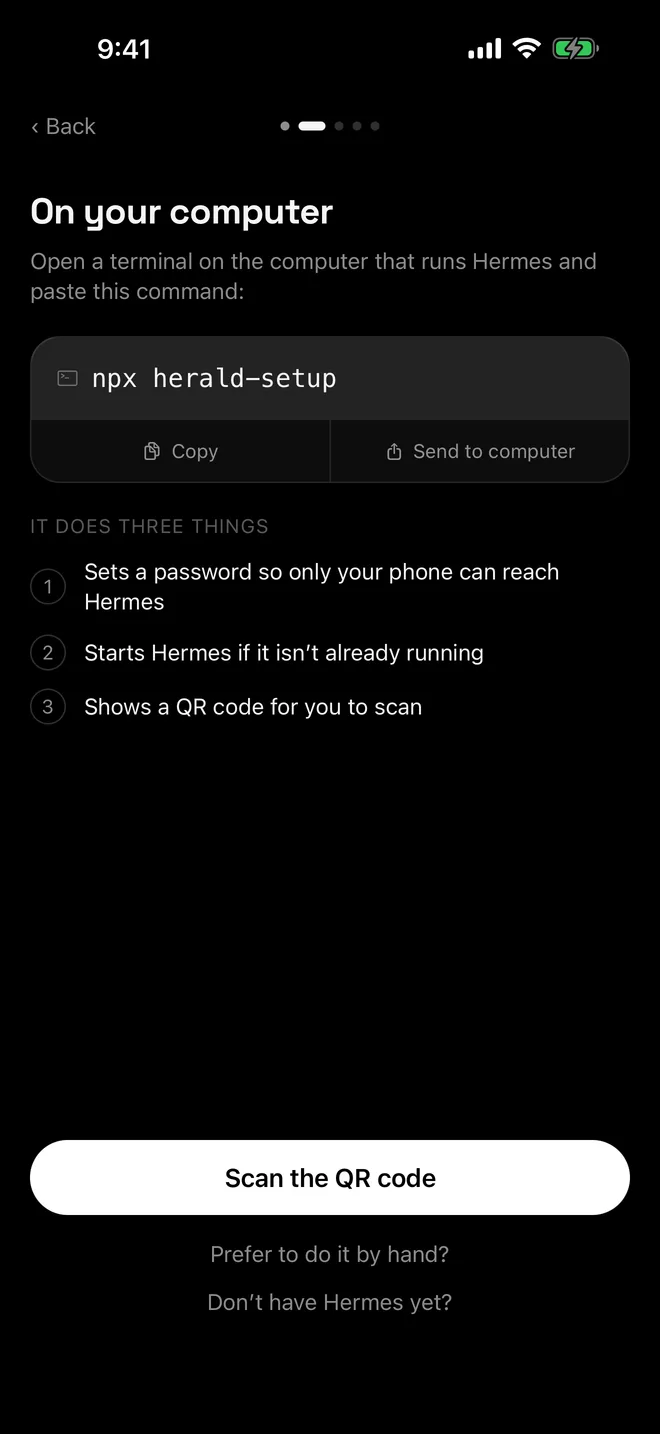
Run
npx herald-setupand tap Scan the QR code. If its output asks you to keep the window open, leave it open. Pairing an address Herald already knows updates that connection instead of adding a duplicate, so your bots, pins and rooms stay.
Away from home
Herald only speaks plain HTTP to local addresses: your Wi-Fi network, loopback and Tailscale. Anything on the public internet needs https://. To reach Hermes from anywhere, install Tailscale on both devices, or put Hermes behind an HTTPS reverse proxy you control.
For a password-protected connection, if the saved address stops answering, Herald also looks for the same computer at its other addresses, such as its Tailscale HTTPS name, and moves only once that Hermes proves it is the same install. It never downgrades from https to http.
Questions
It works at home but not when I’m out. Why?
A Wi-Fi address only works on that network. Use Tailscale on both devices and pair again so Herald saves the Tailscale address.
Should I open a port on my router?
No. Use Tailscale or an HTTPS reverse proxy instead. Herald refuses plain HTTP to public addresses, and Hermes’s username and password sign-in is meant for trusted networks.
Herald worked yesterday. What changed?
Usually the computer restarted and hermes serve didn’t come back, its Wi-Fi address changed, or Tailscale signed out. The checks above find each of these.